Decide what plays, where, and when.
Group designs and images into playlists, schedule them by day and time, split a screen into regions, and assign the result to each screen you own.
Included in every plan · $5 per screen a month
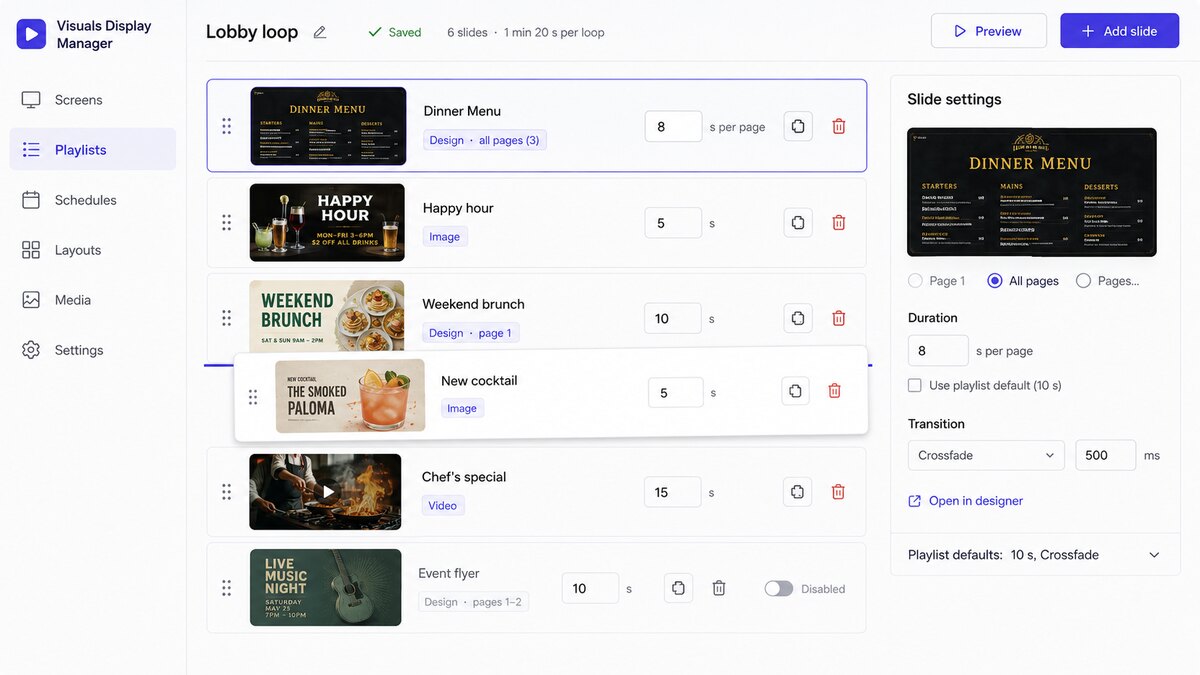
What plays, and for how long
Mix designs and images in any order, set how long each one holds, and pick how it moves to the next. The following slide is loaded before it's needed, so nothing stalls between slides.
- Per-slide durations and crossfades.
- Designs and images together in the same playlist.
- Loops on its own — set it once and leave it.
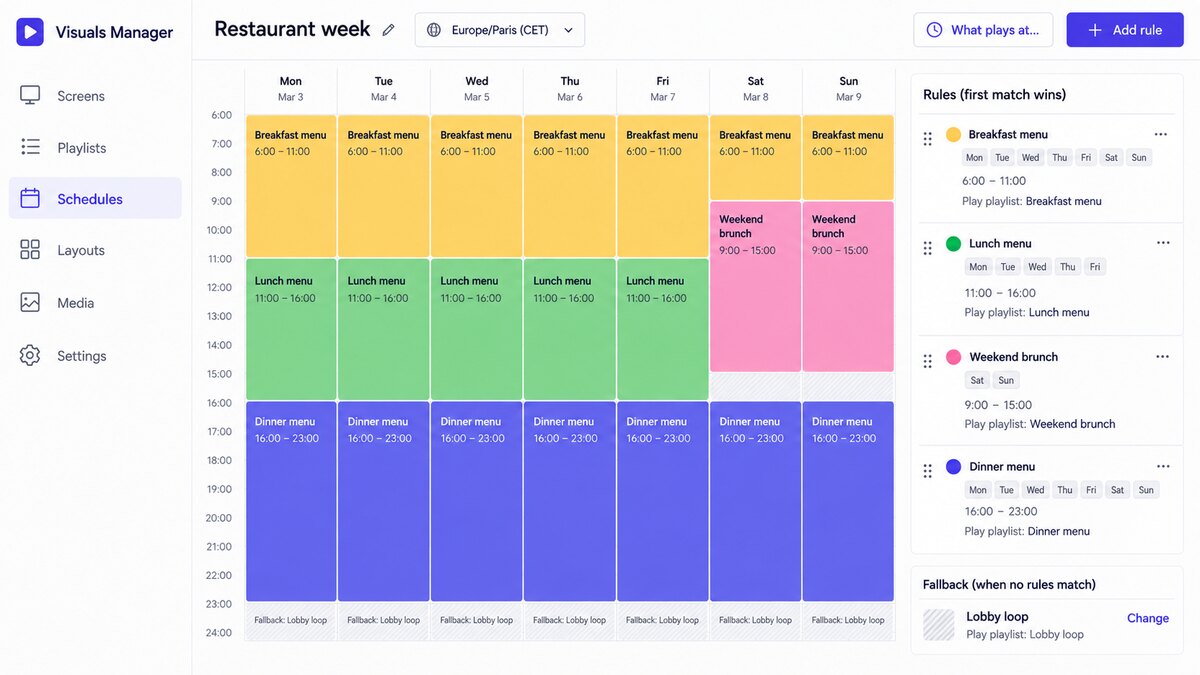
Breakfast ends at 11, whatever the network is doing
Switch what's playing by day and time. Schedules run on the screen's own clock rather than waiting on us, so the lunch board appears on time even if the office network is having a bad morning.
- By day and time — weekday mornings, Saturday nights, whatever you need.
- Runs on the screen's clock, not ours.
- Nothing scheduled? The screen shows a quiet clock, not an error with our name on it.
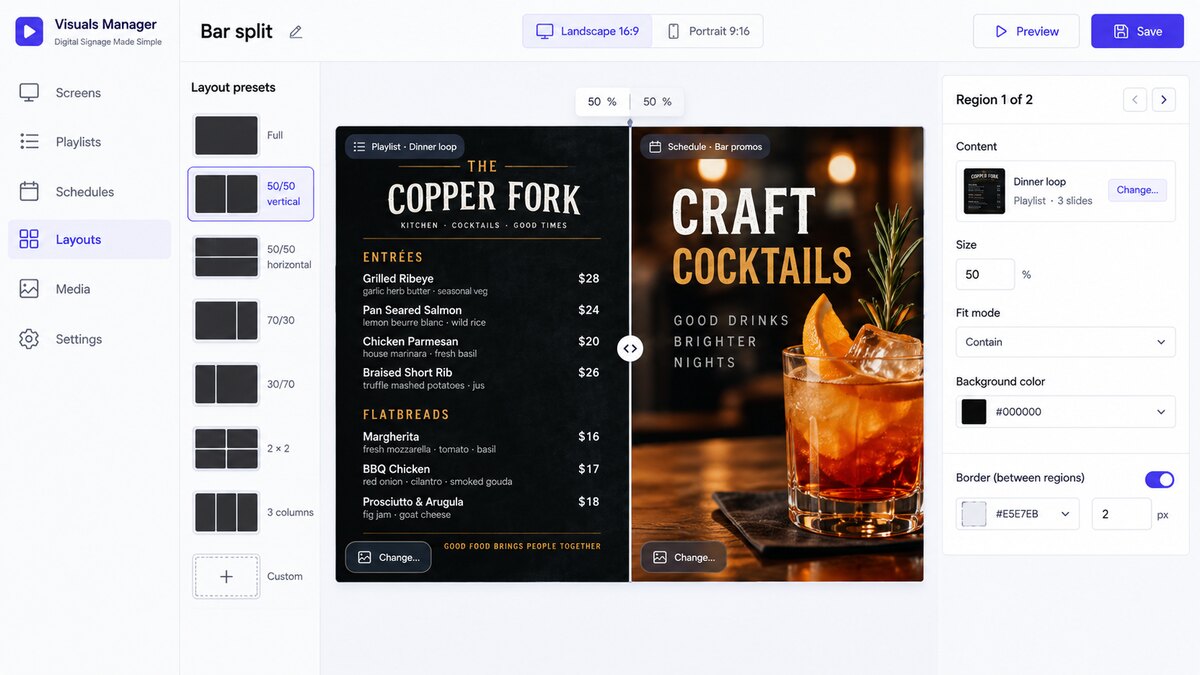
One screen, more than one thing
Split a screen into regions and give each one its own content — a tap list taking most of the wall with specials down the side, or a four-up grid in a lobby. Start from a preset and adjust.
- Presets: full screen, 50/50 either way, 70/30, 2×2, three-column.
- Each region gets its own playlist or design.
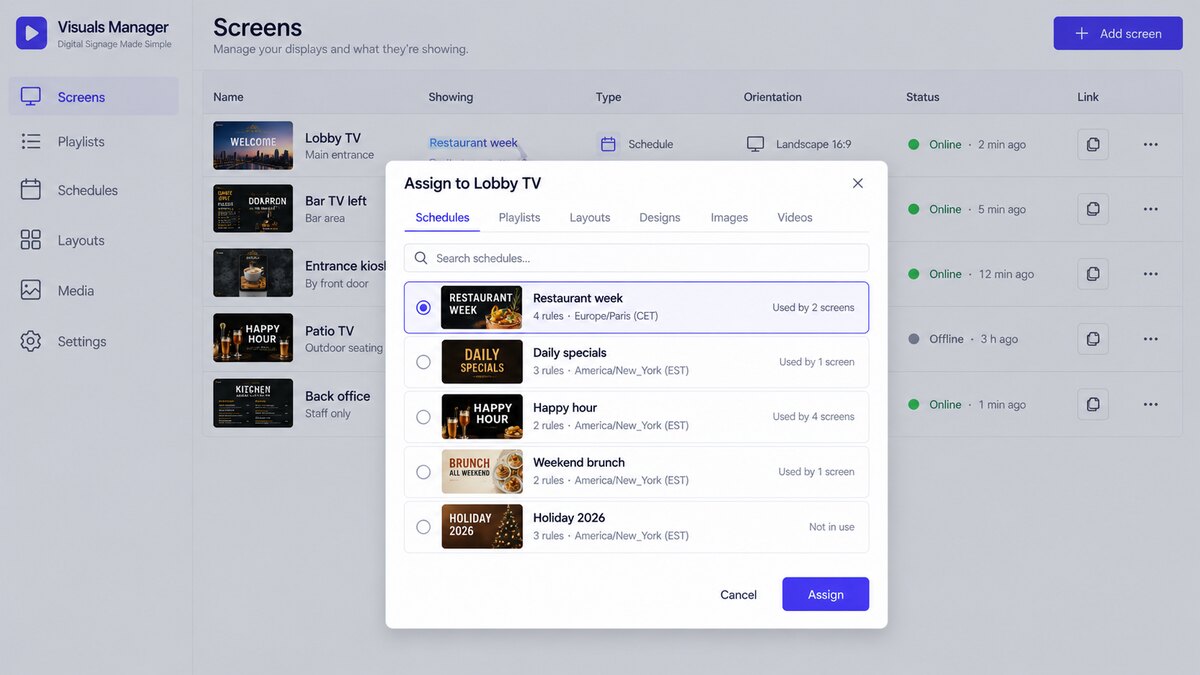
Every screen, and what's on it
Add a screen, assign it a playlist, a schedule or a layout, and copy its link. Change the assignment whenever you like and the screen picks it up on its own.
- Assign and reassign without touching the screen.
- Updates arrive on their own — no one walks around with a USB stick.
- Keeps playing offline from its own copy if the connection drops.
A library that doesn't become a junk drawer
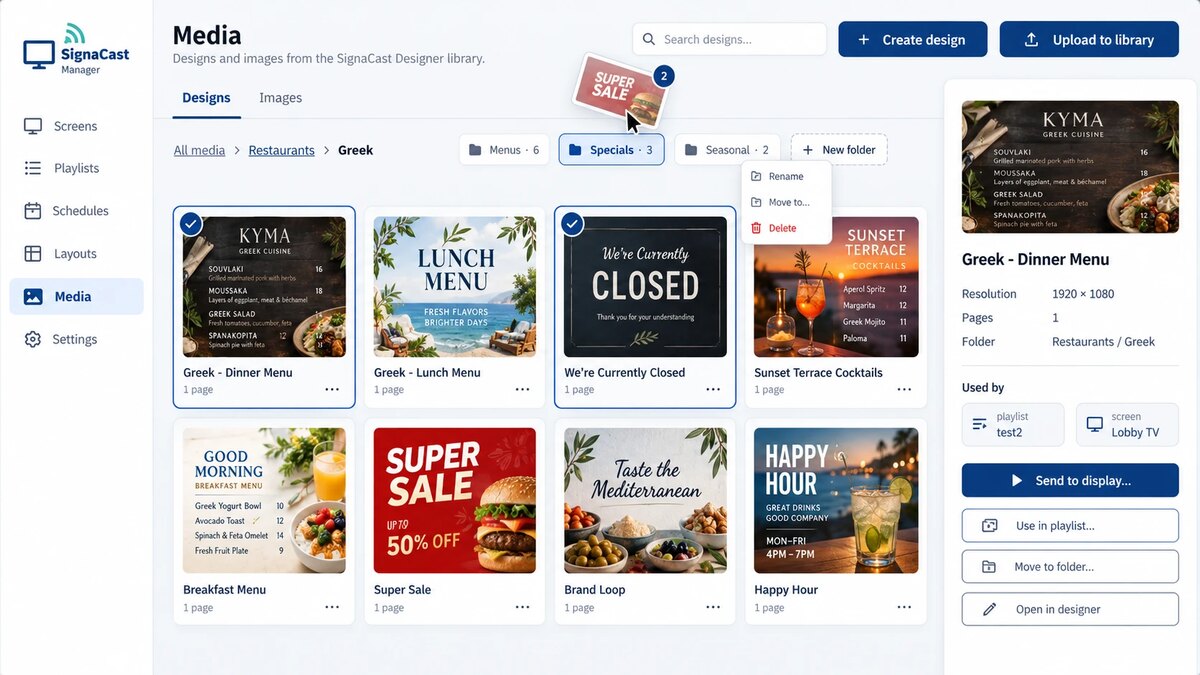
Upload the images you already have and keep them in folders. PNG, JPG, WEBP and SVG go straight into a playlist or inside a design.
- Folders, so last year's promotions aren't mixed in with this week's.
- Used anywhere — in a playlist directly, or placed inside a design.
Put something on a screen today.
Add a screen, give it a playlist, and point the screen at its link.